This entry walks you through the steps to create a simple form that integrates with the Workflow and ETL modules.
By the end of this guide, you will have a fully functional form with the following structure:
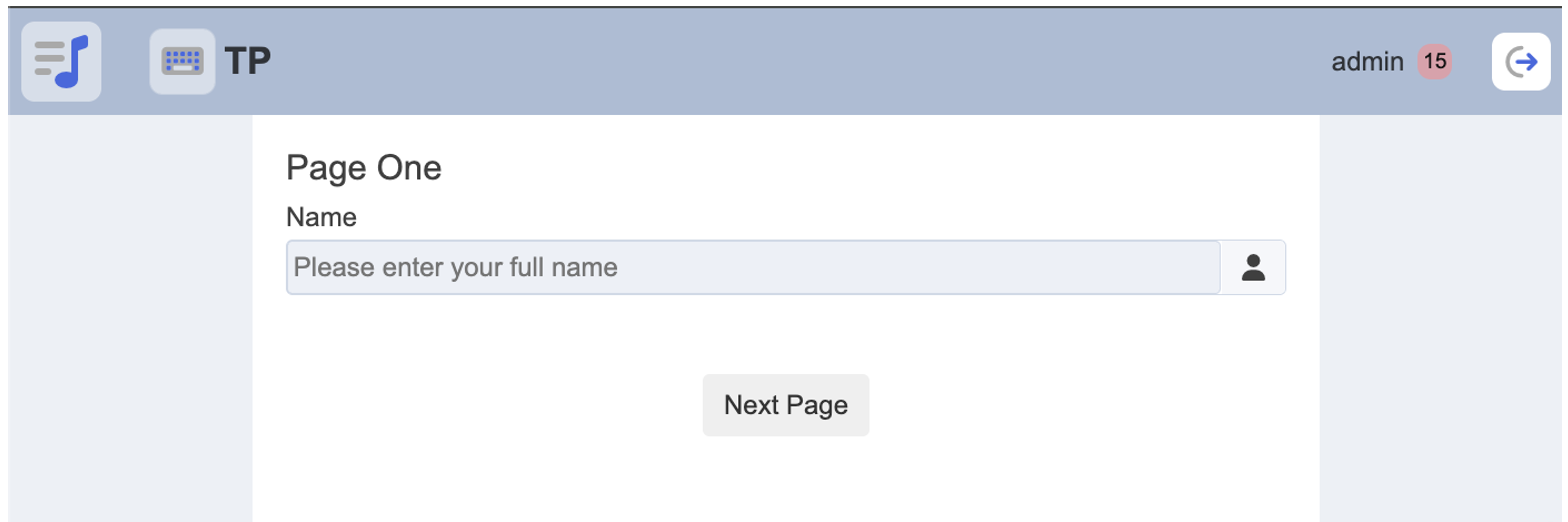
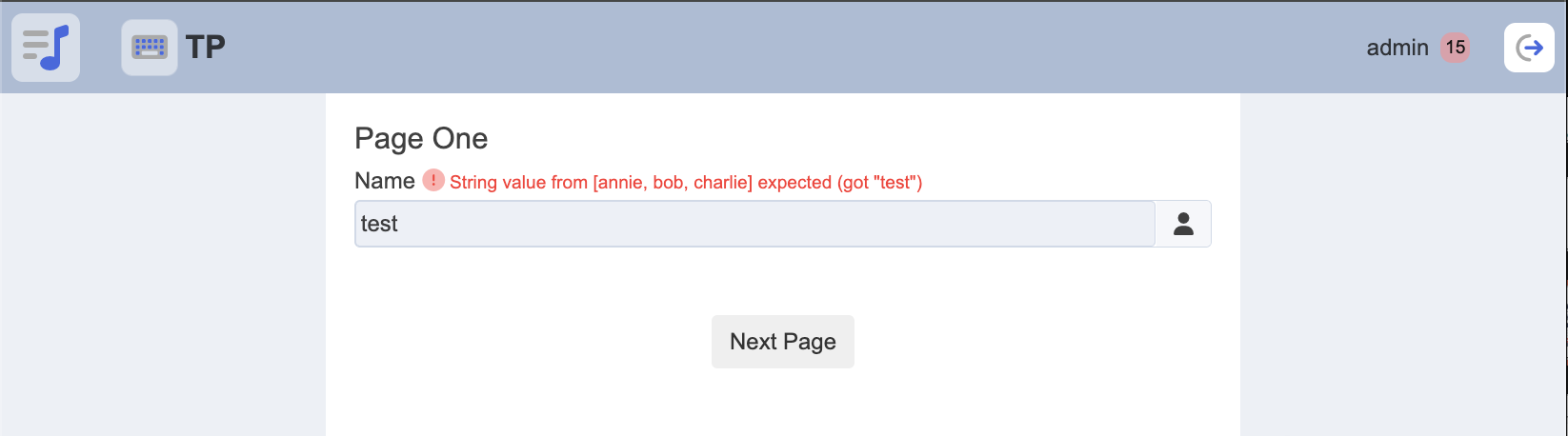
- Page One: The user is required to enter a name. A validation rule ensure that only predefined names are accepted. If the validation is successful, the user may proceed to Page Two.
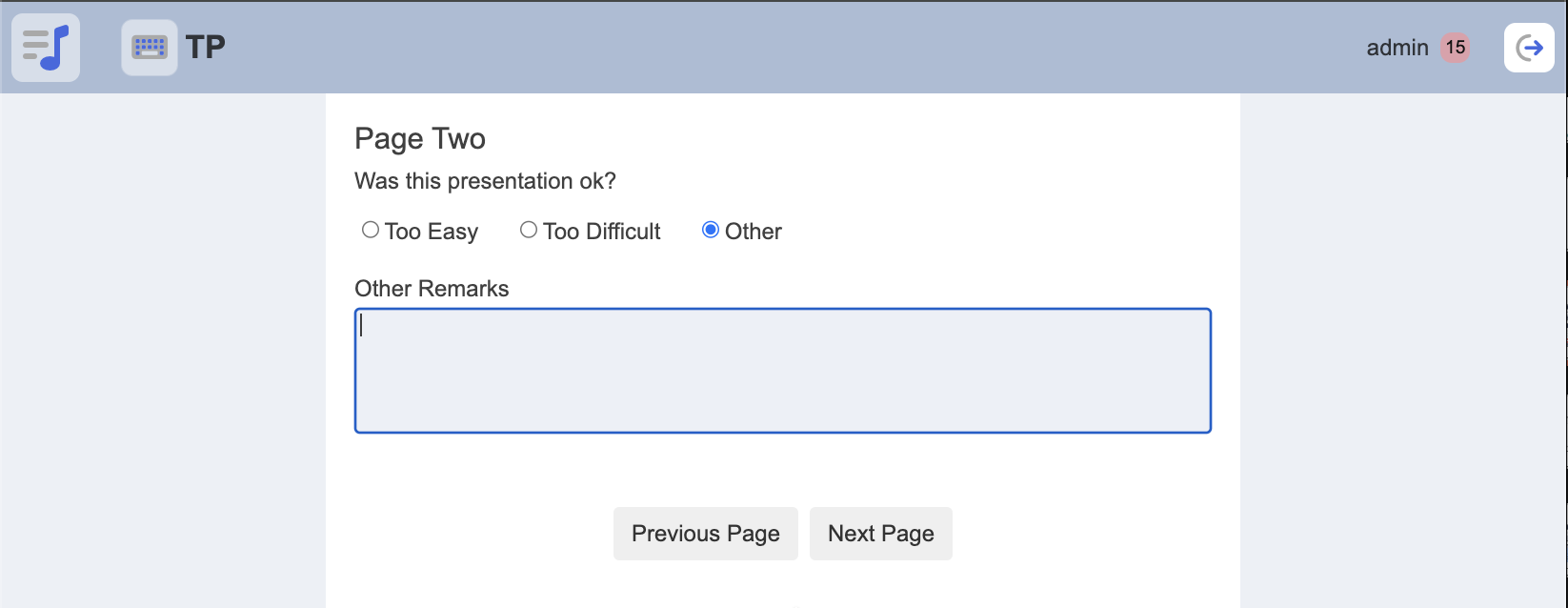
- Page Two: The user answers a radio button question, If “Other” is selected, an additional input field labeled “Other Remarks” will be displayed. After completing the question, the user may proceed to Page Three.
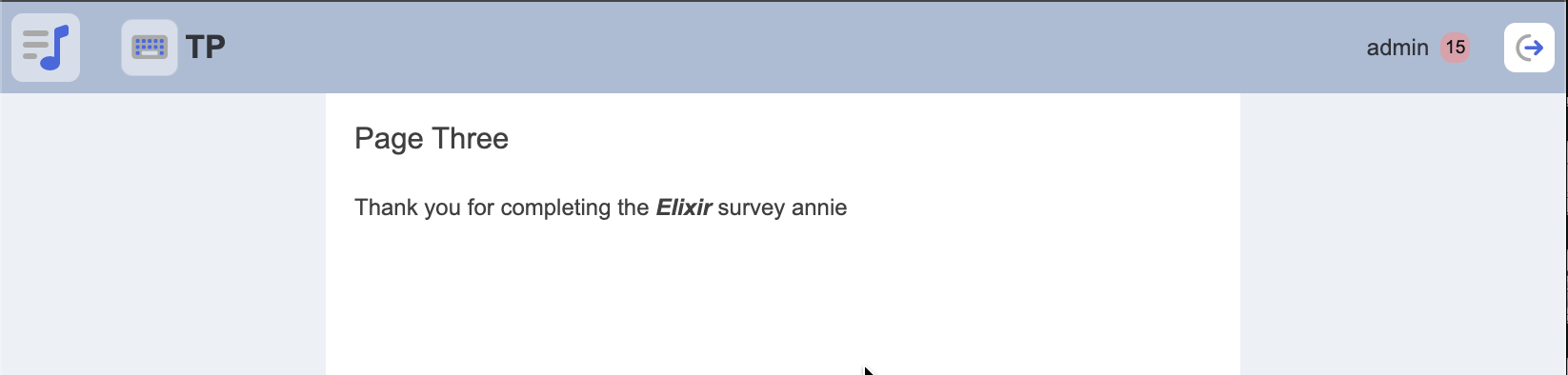
- Page Three: A confirmation page that displays a thank-you message after the form has been completed and submitted.
Please refer to the following PDF file for a step-by-step guide to create the above form:
click here! (775.3 KB)
To test out running the form, you may follow the steps below:
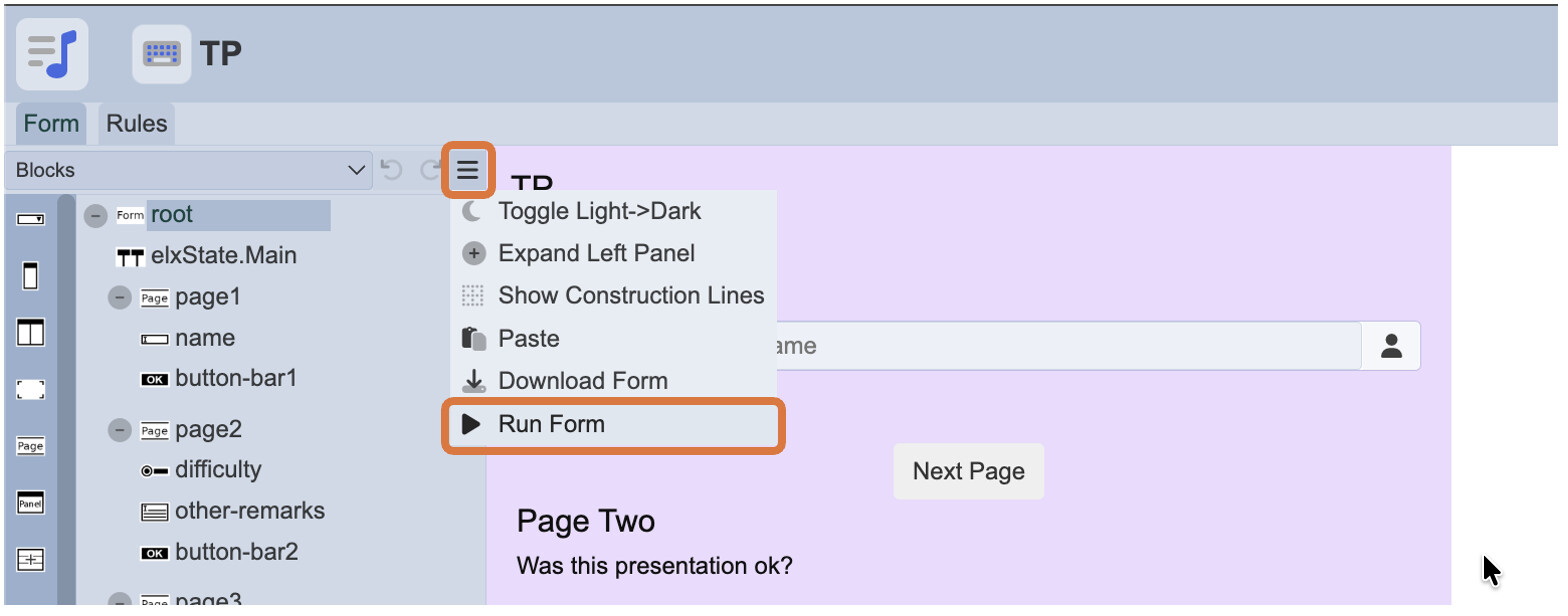
1/ In the Form Designer, click on the 3-line menu icon followed by the option “Run Form”.
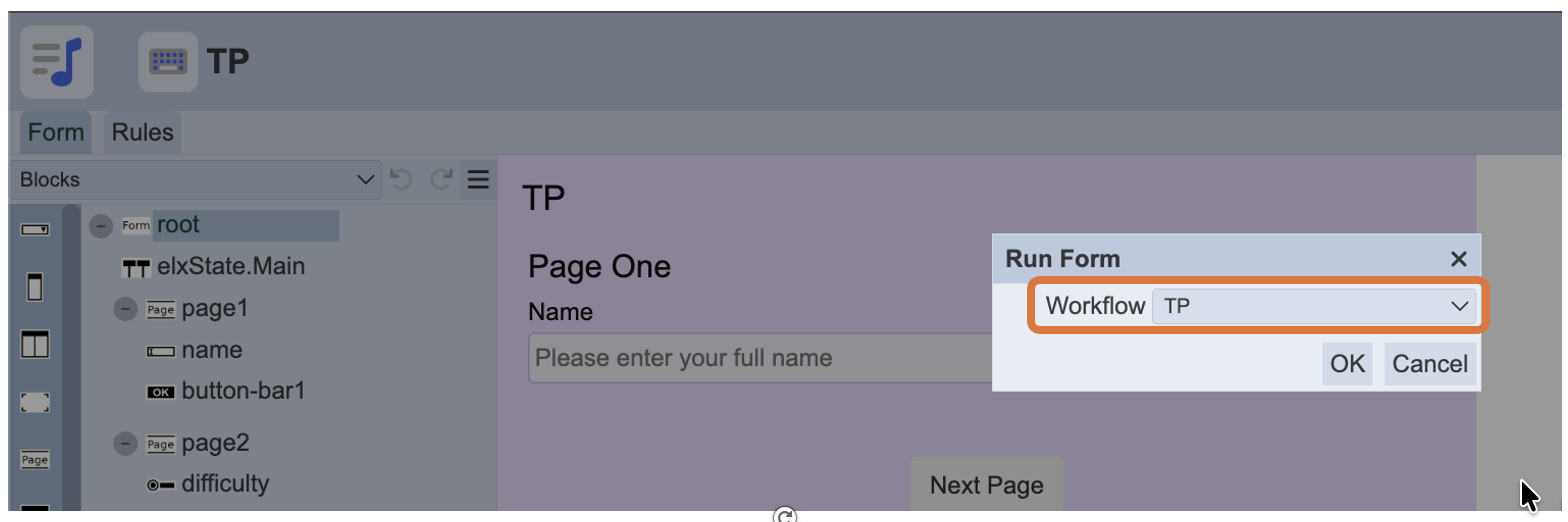
2/ Select the workflow, “TP”.
3/ You should be redirected to another tab to test out the form.