Overview
This entry explains how to configure ETL logic to calculate a future date based on a specified number of days, while excluding weekends and public holidays. The approach is based on timestamps and calendar-aware hour counting. The ETL first calculates an estimated end timestamp, then uses the Hour Counter step with configured calendars to determine whether the range contains the required number of valid hours. If the counted hours are less than expected, the end timestamp will be extended.
Prerequisites
Before configuring the ETL, ensure the required Scheduler calendars have been created.
Example calendars:
- Weekends
Represents Saturday to Sunday, full day. - Public Holidays
Represents the applicable public holiday dates.
Please refer to the following support entry for further details on creating calendars from the Scheduler module: Configuring Scheduler Calendars for Weekends and Public Holidays - Ambience 2020+ - Elixir Support Forum
Step 1: JSON Record
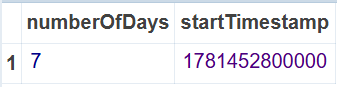
Define the input record in the JSON Field with a starting timestamp and the number of days to add.
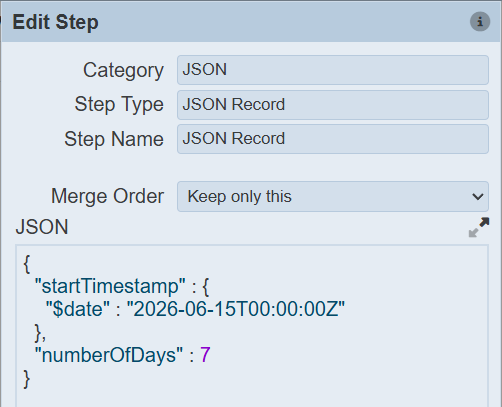
{
  "startTimestamp" : {
    "$date" : "2026-06-15T00:00:00+08:00"
  },
  "numberOfDays" : 7
}
The startTimestamp is the starting date/time of the calculation.
In this example, the timestamp is configured with the +08:00 timezone offset. This means the calculation starts at midnight based on UTC+08:00 local time, such as Singapore or Malaysia time. Please configure the timezone offset according to your own local timezone.
Step 2: Integer Multiply
Convert the number of days into the expected number of valid hours.
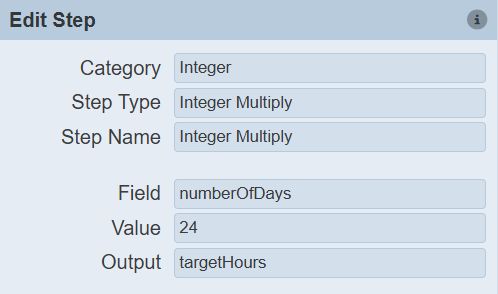

- Field: numberOfDays
- Value: 24
- Output: targetHours
Note:
7 days × 24 hours = 168 target hours
Step 3: Integer Multiply
Convert the number of days into milliseconds for calculation.
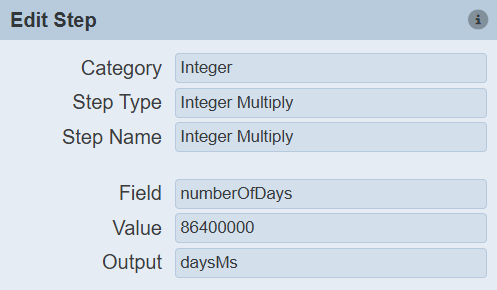

- Field: numberOfDays
- Value: 86400000
- Output: daysMs
Note:
86400000 = 24 × 60 × 60 × 1000
This is the number of milliseconds in one day.
Step 4: Long Integer Add Field
Calculate the initial estimated end timestamp by adding the converted milliseconds to the start timestamp.
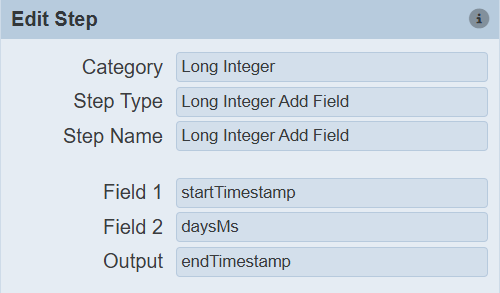

- Field 1: startTimestamp
- Field 2: daysMs
- Output: endTimestamp
This operation produces a first estimated end timestamp before weekends and public holidays are considered.
Step 5: Long Integer Subtract
Subtract 1000 milliseconds to fine-tune the end timestamp.
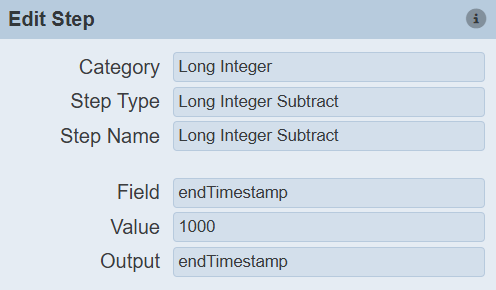

- Field: endTimestamp
- Value: 1000
- Output: endTimestamp
This operation subtracts one second from the end timestamp.
Step 6: Hour Counter
Generate a count of hours for validation.
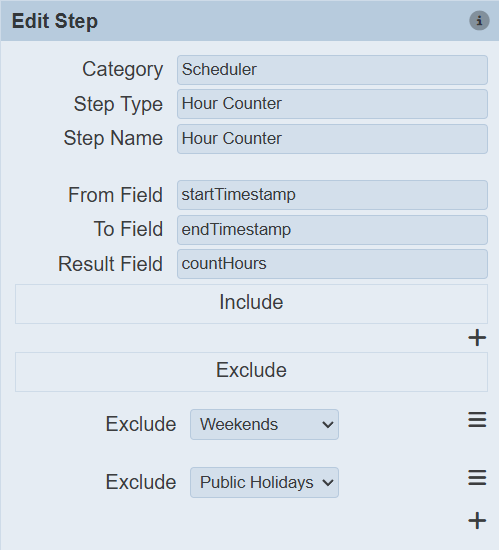
- From Field: startTimestamp
- To Field: endTimestamp
- Result Field: countHours
Calendar configuration:
- Exclude: Weekends
- Exclude: PublicHolidays
The output field countHours represents the actual valid hours within the timestamp range after applying the calendar rules.
Step 7: Compare Counted Hours Against Target Hours
Compare:
countHours = targetHours

If countHours is equal to targetHours, the current endTimestamp is the accurate calculated future date.
If countHours is less than targetHours, continue with the adjustment steps below.
Step 8: Integer Subtract Field
Calculate how many valid hours are still missing.
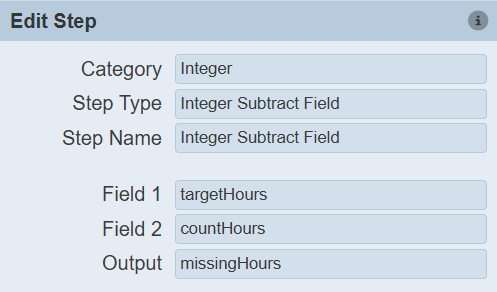
- Field 1: targetHours
- Field 2: countHours
- Output: missingHours
Example:
targetHours = 168
countHours = 96

missingHours = 72

Step 9: Integer Multiply
Convert the missing hours into milliseconds.
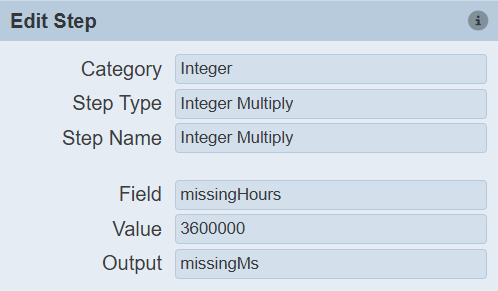

- Field: missingHours
- Value: 3600000
- Output: missingMs
Note:
3600000 = 60 × 60 × 1000
This is the number of milliseconds in one hour.
Step 10: Long Integer Add Field
Extend the end timestamp by adding the missing milliseconds.
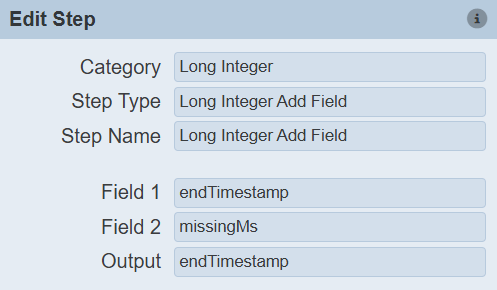

- Field 1: endTimestamp
- Field 2: missingMs
- Output: endTimestamp
This creates a new estimated end timestamp that compensates for the excluded weekends or public holidays.
Step 11: Repeat Hour Counter Check
Add the Hour Counter step again with the updated endTimestamp.
- From Field: startTimestamp
- To Field: endTimestamp
- Result Field: countHours
Calendar configuration:
- Exclude: Weekends
- Exclude: PublicHolidays
Perform the comparison:
countHours = targetHours

Once this condition is met, the current endTimestamp is validated and established as the calculated future date with weekends and public holidays excluded.
Step 12: Change Field Types
After the final endTimestamp has been calculated, convert the timestamp fields to Date-Time format.
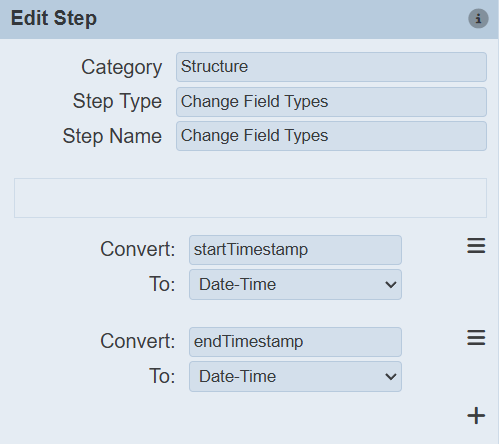

- Convert
startTimestamp - To:
Date‑Time
– - Convert
endTimestamp - To:
Date‑Time
Step 13: Local Formatted String
Format both timestamps for readability.
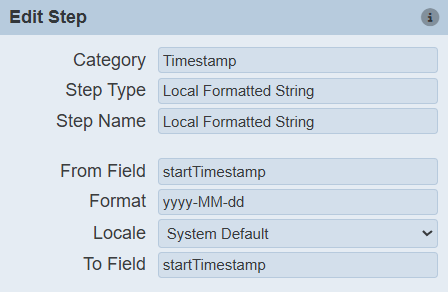

- From Field: startTimestamp
- Format: yyyy-MM-dd
- Locale: System Default
- To Field: startTimestamp
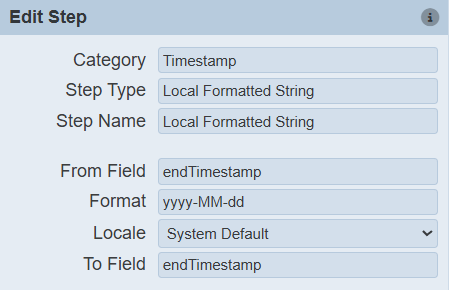

- From Field: endTimestamp
- Format: yyyy-MM-dd
- Locale: System Default
- To Field: endTimestamp
Step 14: Discard Fields
Remove intermediate fields that are not required in the final output.
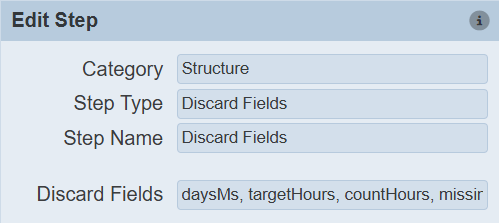
Example fields to discard:
daysMs
targetHours
countHours
missingHours
missingMs
The final output can retain:
startTimestamp
endTimestamp
numberOfDays
