Overview
This guide explains how to configure calendars in the Scheduler module to define constraints for weekends and public holidays. These calendars can then be applied to scheduling rules, ensuring tasks or jobs respect non‑working days.
[ Weekends Calendar ]
Step 1: Access Scheduler
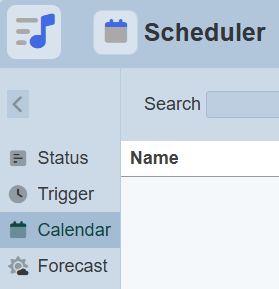
Navigate to the Scheduler module and proceed to the Calendar tab.
Step 2: Create Calendar
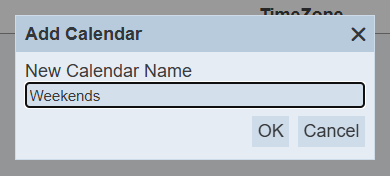
Click Add to create a new calendar. Define the name, e.g., Weekends.
Step 3: Configure Constraint Type
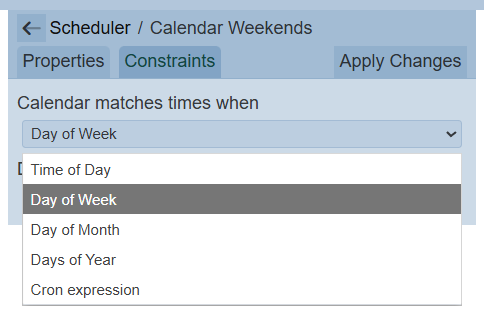
Navigate to the Constraint tab. From the Calendar matches times when dropdown, select Day of Week.
Step 4: Select Weekend Days
Tick the boxes for the days you want to mark as weekends (e.g., Saturday and Sunday).
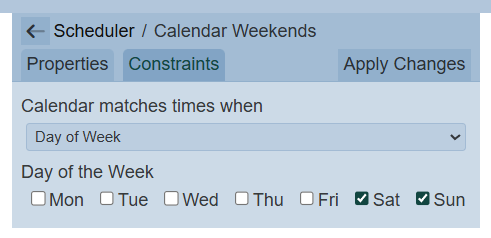
Click Apply Changes to save the calendar.
[ Public Holidays ]
Step 1: Access Scheduler
Navigate to the Scheduler module and proceed to the Calendar tab.
Step 2: Create Calendar
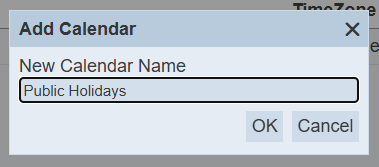
Click Add to create a new calendar. Define the name, e.g., Public Holidays.
Step 3: Configure Constraint Type
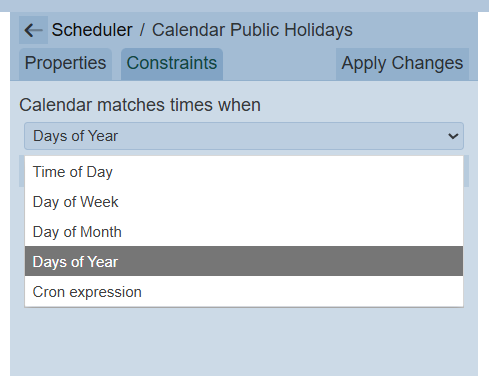
Navigate to the Constraint tab. From the Calendar matches times when dropdown, select Days of Year.
Step 4: Define Holiday Dates
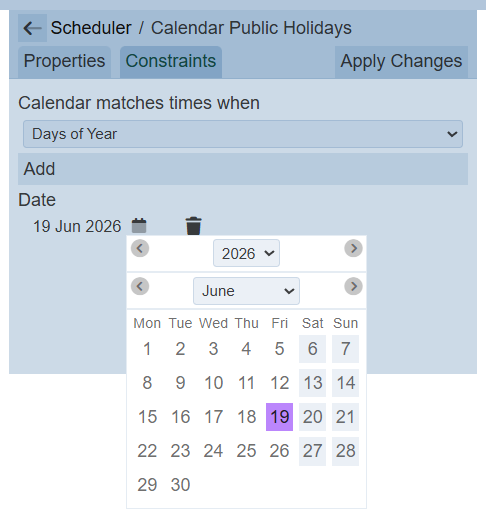
Specify the exact dates to be marked as public holidays. Add all relevant days required for your constraint.
Click Apply Changes to save the calendar.
Result

You now have two calendars configured:
- Weekends → excludes specified days of the week.
- Public Holidays → excludes specified dates in the year.