Overview
This guide explains how to resolve the issue where Excel output is generated into separate sheets when rendering to XLSX.
Step 1: Identify the Issue
When rendering reports to XLSX, you may notice that the output is split into multiple sheets. This happens when the Paged option is selected during export.

Step 2: Verify the Export Option
Check the export configuration for your XLSX output:
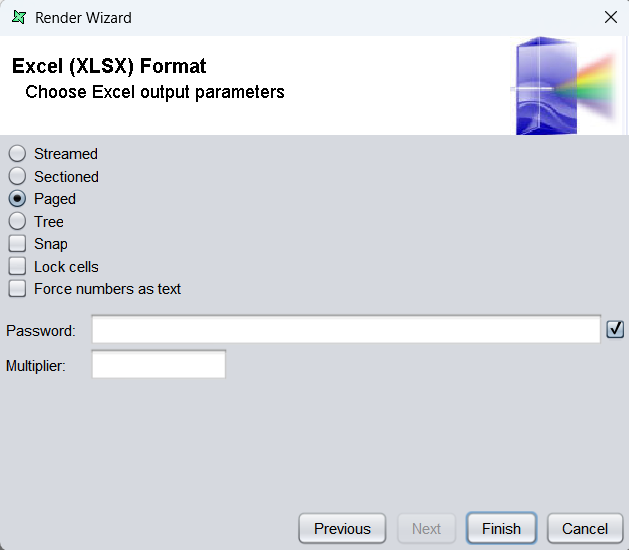
- If Paged is enabled, the renderer will divide the data into separate worksheets.
- If Streamed is enabled, the renderer will format and display the data on a single continuous worksheet.
Step 3: Apply the Correct Setting
- Open the export settings for your XLSX output.
- Ensure the Streamed option is selected.
- Save the configuration and re‑render the report.
With Streamed enabled, the data will remain on one worksheet instead of being split.
What This Fix Achieves
- Prevents data from being separated into multiple sheets.
- Ensures reports render into a single, continuous worksheet for easier review and analysis.
- Provides consistent XLSX output formatting across different report runs.