Overview
This guide explains how to resolve an issue where certain table cells do not appear in Repertoire 202x after a report has been migrated from Repertoire 8.x.
Step 1: Identify the Issue
For reports migrated from Repertoire 8.x to Repertoire 202x, you may notice that certain table cells do not appear in the rendered output.
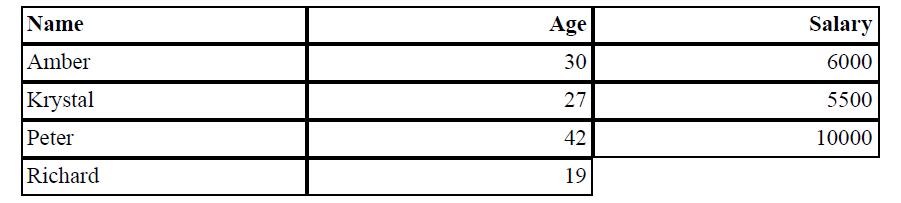
This typically occurs when the cell has no record and the Can Shrink property is enabled. In Repertoire 202x, the rendering engine strictly applies element properties. If a cell has no record and Can Shrink is enabled, the cell will shrink and effectively disappear.
Step 2: Verify the Cell Properties
-
Open the table design in Repertoire Designer.
-
Select the cell that appears missing.
-
Check the Can Shrink property in the Properties panel.
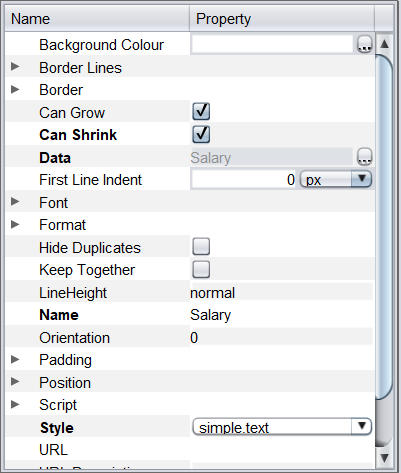
Step 3: Apply the Correct Setting
Depending on your reporting needs, you have two options:
-
Option A: Keep Empty Cells Visible
- Untick the Can Shrink property for the cell.
- Re-render the report to confirm the cell remains visible, even without a record.
-
Option B: Ensure Cells Always Have Data
- Adjust your dataset or table design so that the cell always contains a record.
- This ensures the cell displays consistently without needing to change the property.
What This Fix Achieves
- Prevents table cells from disappearing when no record is present.
- Ensures consistent table formatting across migrated reports.
- Provides flexibility to either preserve empty cells or enforce data-driven rendering.