Overview
This entry explains how SQL data can be filtered dynamically using the job run date embedded in the output file name. The configuration ensures that the datasource retrieves records corresponding to the execution date.
Step 1: Configure The Datasource (DS) & Bind With Desired RML Template
-
In Ambience Designer, create a JDBC datasource.
-
Add a filter in the SQL command, e.g:
SELECT

SportsModel.BodyType, SportsModel.EngineType, SportsModel.ManufacturerID, SportsModel.ModelID, SportsModel.ModelName, SportsModel.RecordDate

FROM dbo.SportsModel

WHERE RecordDate = '${=FormattedDate}'
This ensures that the datasource retrieves records based on the evaluated formatted date parameter.
-
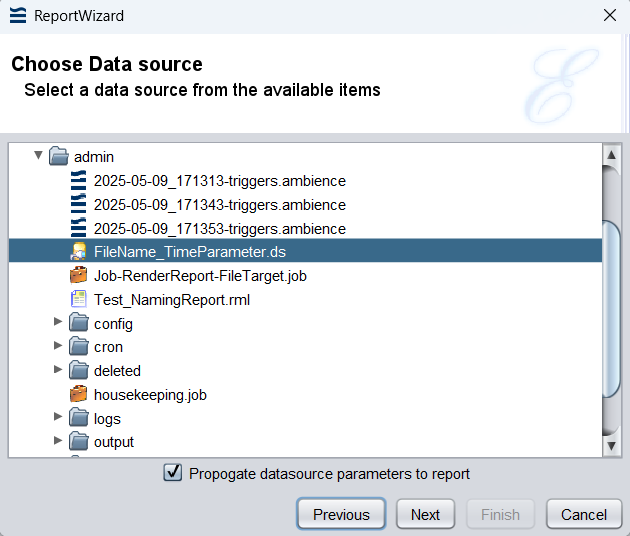
Create a new RML template and link it to the configured datasource.
Step 2: Configure the Job File
-
Right-click a desired folder and create a .job file.
-
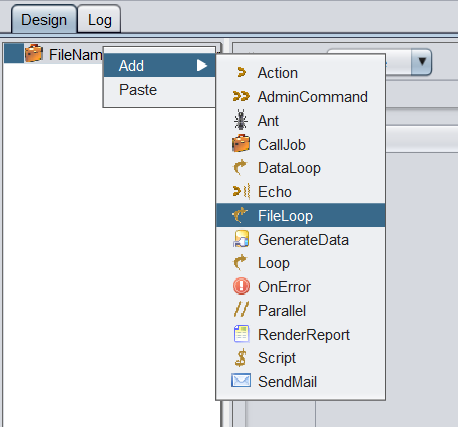
Add & Configure The FileLoop Attribute
i) Right-click the job in the design panel and select the FileLoop atrribute.
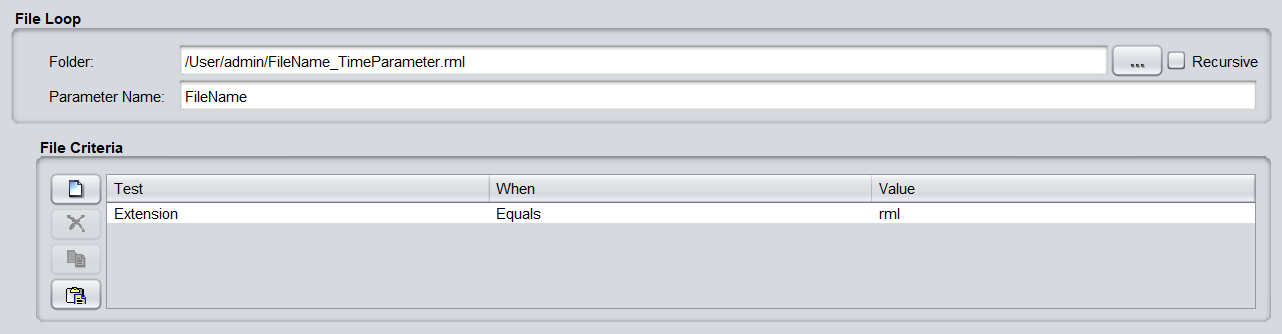
ii) Configure the following:
a) Folder / RML file: Select the folder or specific .rml file to render.
b) Parameter Name:FileName
c) File criteria extension:.rml -
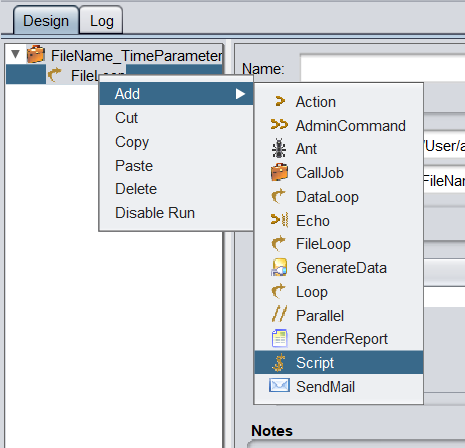
Add &Configure The Script Attribute
i) Right-click the FileLoop attribute and select Script.
ii) Insert the following JavaScript snippet:
// --- Date Logic --- mydate= new Date() theyear = mydate.getFullYear() themonth = mydate.getMonth() + 1 thetoday = mydate.getDate() year = theyear.toString(); month = themonth.toString() ; today = thetoday.toString(); var todaydate = today + "-" + month + "-" + year; // --- Format For FileName --- // To retain directory structure //newFileName = FileName.replace(/.rml/g, " " + todaydate + ".pdf"); // To flatten directory structure newFileName = FileName.replace(/.*\/(.*).rml/g,"$1 " + todaydate + ".pdf"); // ---Format For SQL --- // We put the Month first here so SQL Server finds the records. var sqlDate = month + "-" + today + "-" + year; // Set the variable for the Report Parameter FormattedDate = sqlDate; -
Add & Configure The RenderReport Attribute
i) Right-click on the FileLoop attribute and select RenderReport.
ii) Specify the report to render.
iii) Configure the Target section
a) MIME type: Choose desired MIME type (e.g., PDF, Excel).
b) File Name:${=newFileName}
c) Output location: Define where the rendered file should be saved.iv) Save the .job file.
 Note:
Note:
Using${=newFileName}ensures each output file inherits the timestamp-based naming convention.



Step 3: Test the Configuration
-
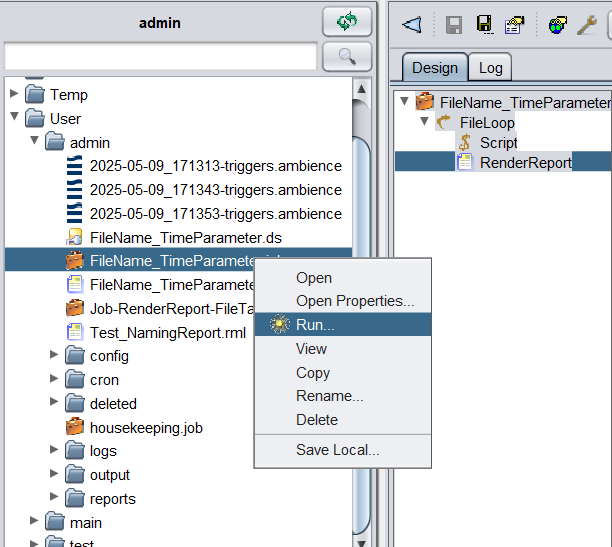
Return to the user panel and locate your .job file.
-
Right-click the .job file and select Run.
Step 4: Verify Output
-
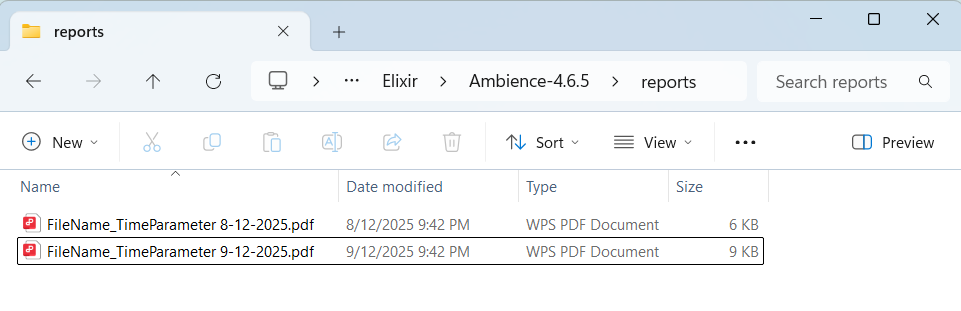
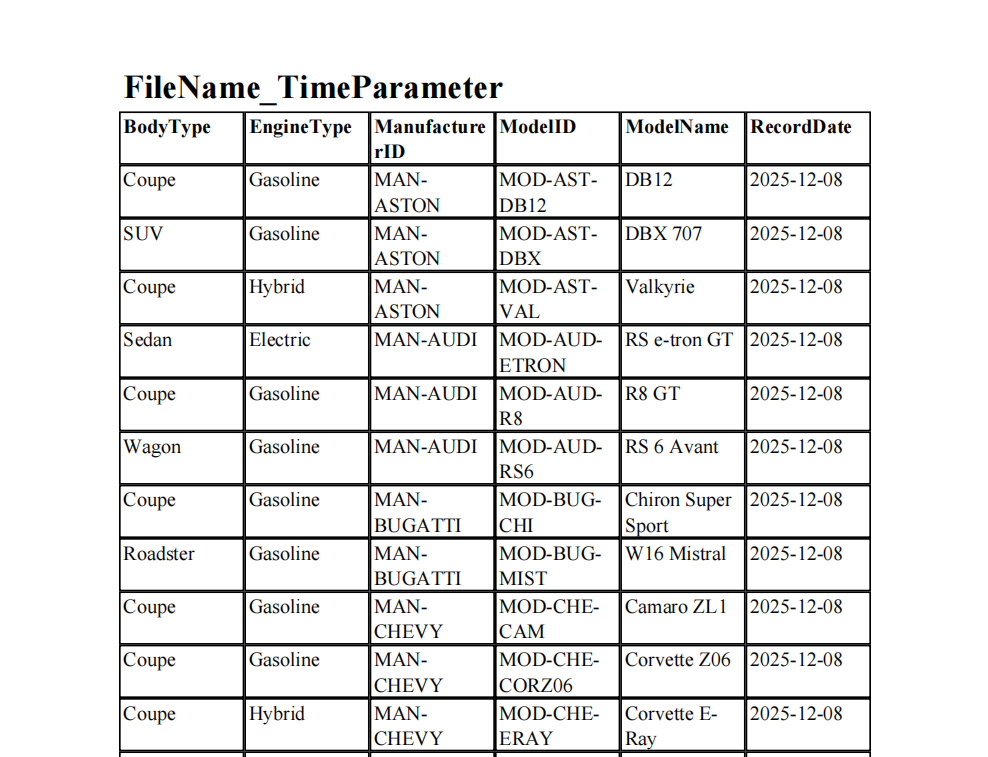
The generated file appears in the specified output location with the configured naming convention: FileName_TimeParameter 8-12-2025.pdf
-
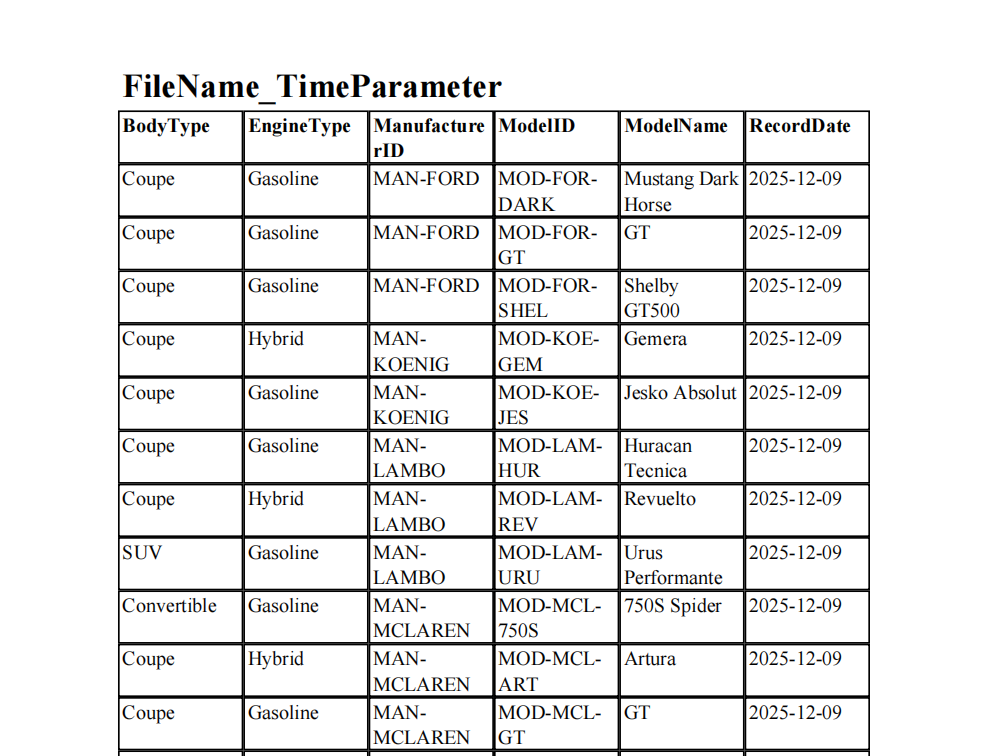
The report data displays only records relevant to the dates, as defined by the FormattedDate parameter.
Attachments
FileName_TimeParameter.zip (2.6 KB)