Users can configure their own Two-Factor Authentication (2FA) once the option has been enabled globally in the application.conf file. Ambience/Repertoire 202x supports TOTP (Time-based One-Time Password) authentication using standard authenticator apps.
Configuration Steps:
-
Open up
application.confand add the configuration below:ambience.user-settings.enable-panel.totp = true -
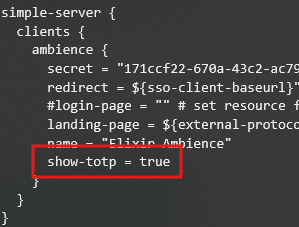
Under
simple-server.clients.ambience, locateshow-totpand set it totrue. This enables the TOTP option at the login screen.
-
User Setup in Report Portal (Please restart the server after making the above changes)
-
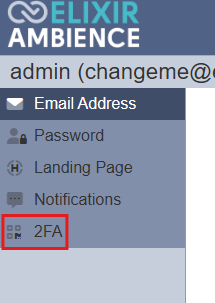
Navigate to User Settings → 2FA in the left panel.
-
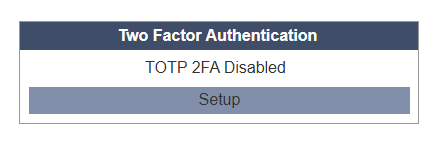
The Two Factor Authentication panel will appear.
-
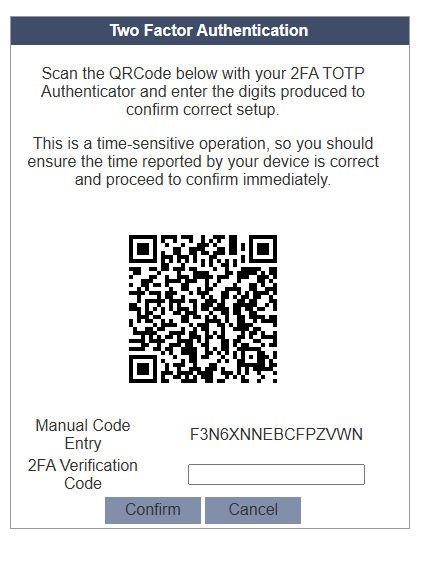
Click Setup to display the QR code.
- Register with Authenticator App
- Open a TOTP authenticator app (e.g., Google Authenticator) on your phone.
- Scan the QR code.
- The app will register as ElixirAmbience (username) and generate a 6-digit code that refreshes every 30 seconds.
- Ambience allows a one-minute window for clock drift. Ensure your phone and server clocks are in sync.
- Confirm Setup
- Enter the 6-digit code (with or without spaces) and click Confirm.
- Once successful, the TOTP 2FA Enabled panel will appear.
- Incorrect or incomplete codes will trigger error messages.
- Testing 2FA
- Log out and log back in.
- You will be prompted for the 2FA code.
- Entering an incorrect code will display an error in the login dialog.
Disabling 2FA
- Open up the user settings and click on the 2FA tab
- Enter the current 6-digit code and click Disable.
- A notification will confirm that 2FA has been disabled.
- If you have the
mod-identityprivilege, use the Identity module to reset 2FA for a user.