Overview
This guide provides instructions for performing a password change in Ambience/Repertoire 202x in environments where the email server has not been configured.
Step 1: Navigate to User Settings
-
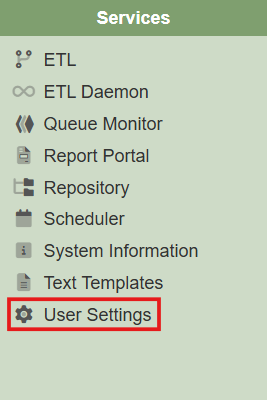
Navigate to the User Settings module within the Service Chooser panel.
-
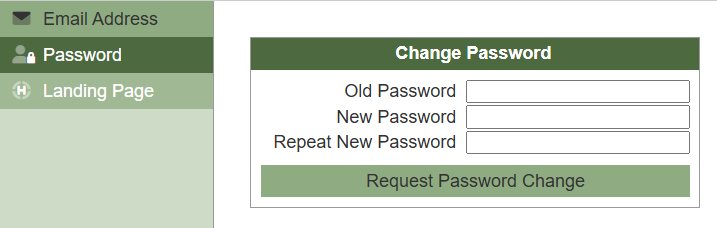
Select the Password tab.
Step 2: Request Password Change
-
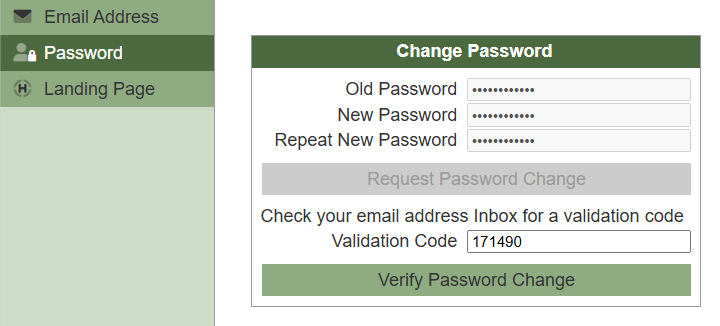
Enter the Old Password, New Password, and Repeat New Password fields.
-
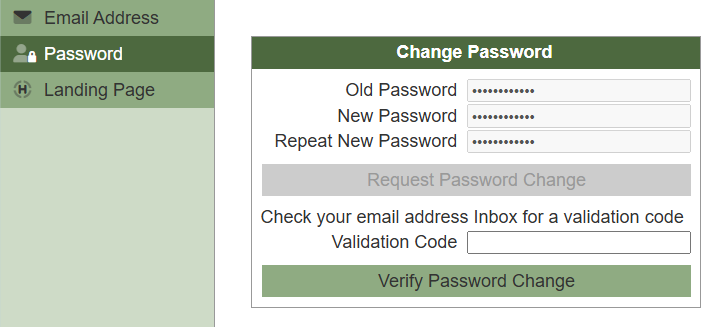
Click Request Password Change.
Step 3: Locate Verification Code File
-
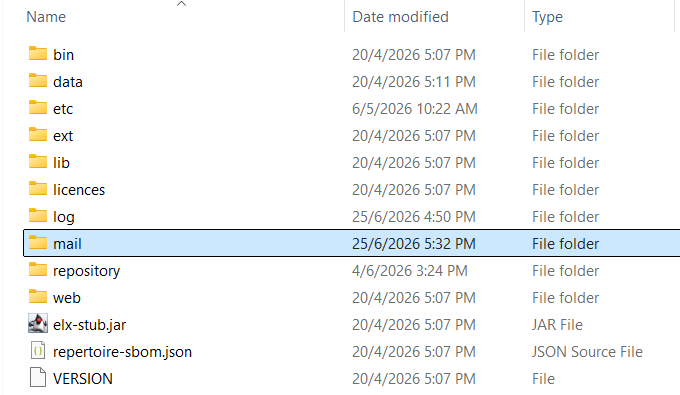
Navigate to the
/mailfolder within your Ambience/Repertoire 202x installation directory. -
Open the latest folder created with a new ID and locate the
mail.txtfile.
Step 4: Retrieve Verification Code
-
Open the newly created
mail.txtand identify the Password Change Verification section.Example, excerpt from
mail.txt:Mail2(List(farhana@elixirtech.com),List(),List(),List(),Password Change Verification,<h2>Elixir Ambience Password Change</h2> <p>A change of password has been requested by mae. <p>Please enter this approval code on the change password page:</p> <p>171490</p> <p>If you are an Elixir Ambience user and did not request this change, please contact your administrator.</p> <p>If you take no further action, the password change will be rejected.</p>,List()) -- end -- -
Copy the numeric code provided.
Step 5: Enter Verification Code
-
Return to the Password tab in User Settings.
-
Paste the code into the Validation Code field.
-
Submit the code.
Step 6: Verify Successful Password Change
-
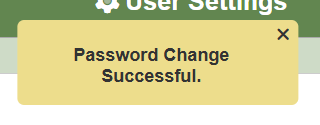
A Password Change Successful banner will appear.
Result
Password changes can be carried out successfully even without an email server setup by retrieving the verification code directly from the local /mail directory.