This guide outlines the process for enabling, extracting, and converting activity logs in Repertoire 202x into a readable CSV format.
1. Enable Activity Logging
- Navigate to your Repertoire installation directory.
- Open
etc/logback.xmlin a text editor. - Insert this block inside the element to define a new appender for activity logs:
	<appender name="ActivityJson" class="ch.qos.logback.core.rolling.RollingFileAppender">
		<rollingPolicy class="ch.qos.logback.core.rolling.TimeBasedRollingPolicy">
			<fileNamePattern>${logFolder}/%d{yyyy-MM-dd}/activity.jsonl</fileNamePattern>
		</rollingPolicy>
		<prudent>true</prudent>
		<append>true</append>
		<immediateFlush>true</immediateFlush>
		<encoder>
			<pattern>%replace(%replace(%replace(%msg){"\r|\n|\t"," "}){"\\s{2,}"," "}){"\\s*:\\s*",":"}%n</pattern>
		</encoder>
	</appender>

	<logger name="Activity" level="info" additivity="false">
		<appender-ref ref="ActivityJson" />
	</logger>
- After adding the configuration, save logback.xml and restart the Repertoire service to apply the changes.
Once enabled, every time you render a template, a new log file will be created at:
/logs/activity.jsonl
2. Run the ETL Chainset
-
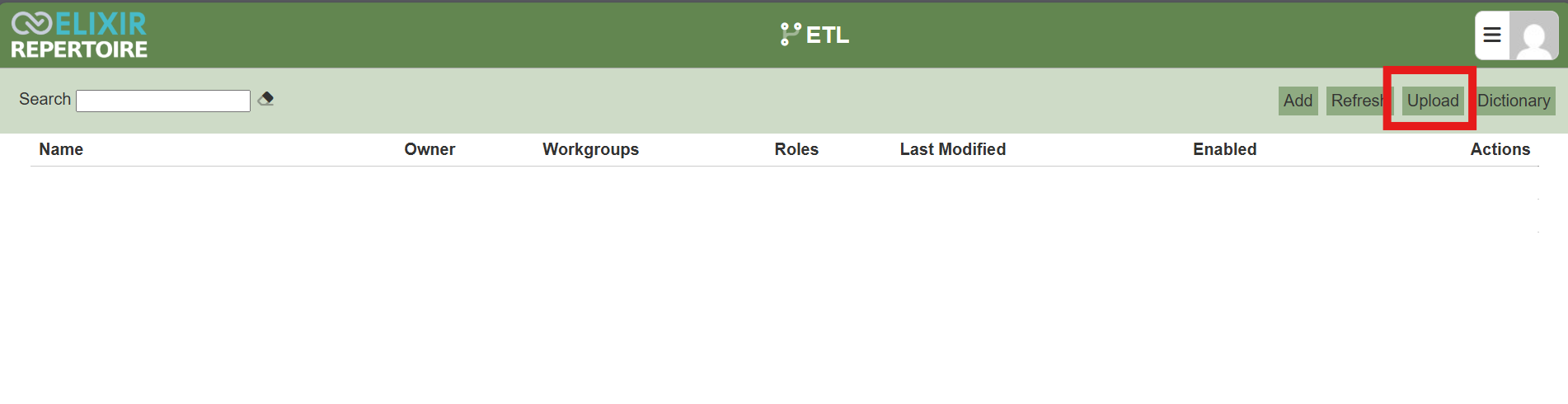
Upload the ETL chainset into your Repertoire ETL module.
-
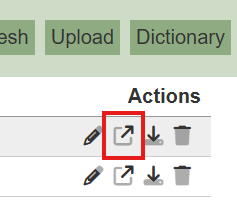
Open the chainset by clicking on this icon.
-
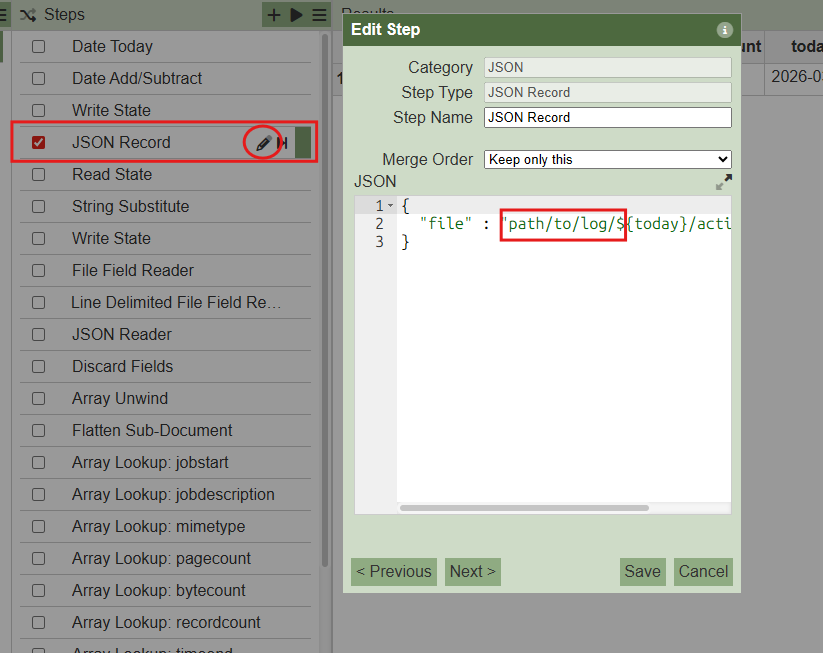
Change the path to your log file by clicking on the fourth step, “JSON Record” and click Save.
-
To test and verify the ETL chainset works, click on the chainset name, and click on the play icon.

- The ETL process will output a file ActivityLogs.csv. This CSV will contain the activity logs for the previous day, located in the /logs folder.
3. Automate the Process
To keep logs updated automatically:
-
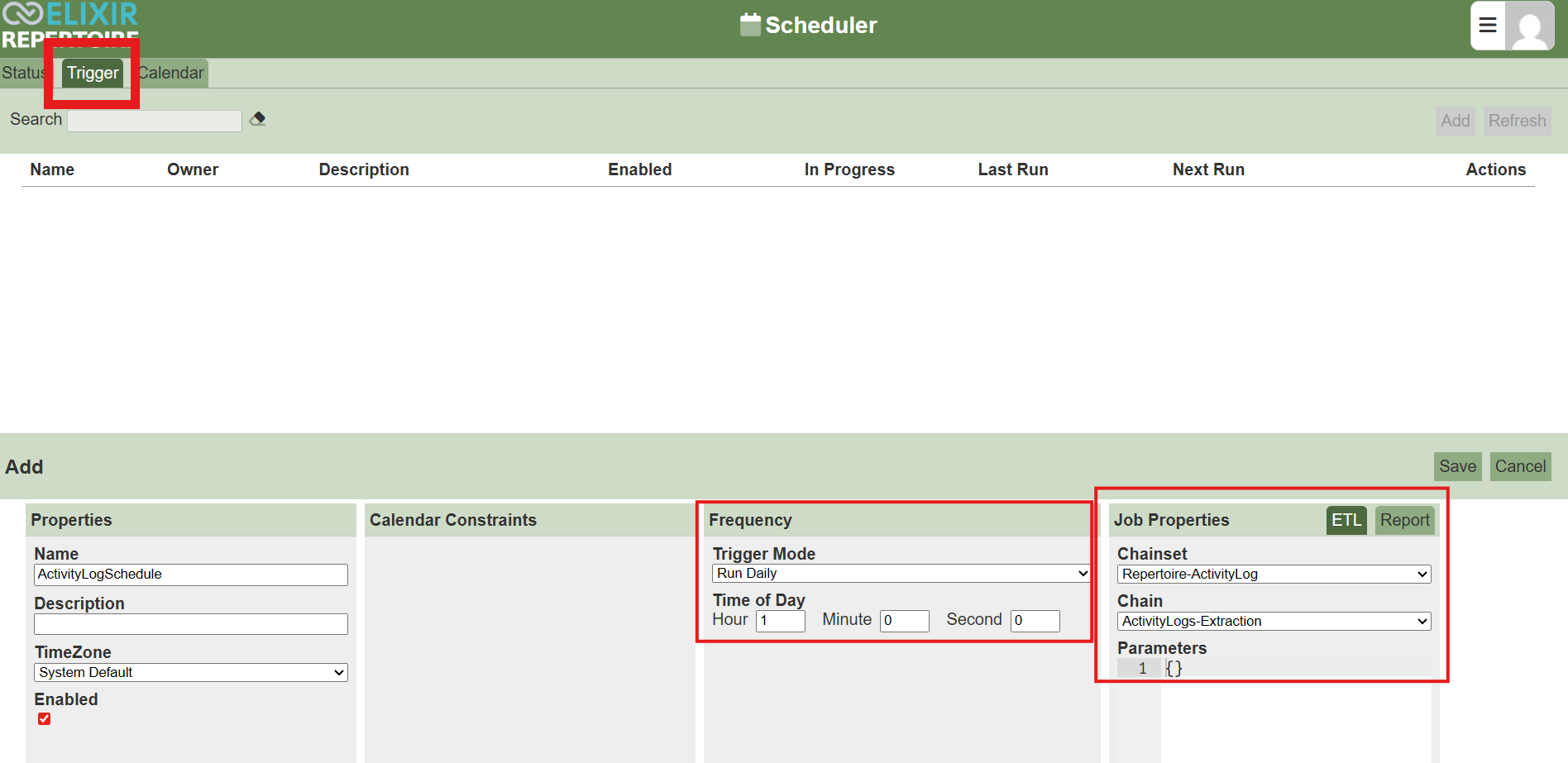
Using the scheduler module, schedule the ETL chainset to run daily at 1:00 AM.
-
This ensures that each morning you have a fresh
ActivityLogs.csvcontaining the activity logs from the day before.
Repertoire-ActivityLog.chainset.zip (2.0 KB)