This guide covers building and running a local Ambience 2024 Server Docker image on Linux (Ubuntu/Debian) or Windows 11 with Docker Desktop and WSL 2. It walks through the build, container lifecycle, persistent data, MongoDB configuration, fonts, timezone, and common troubleshooting.
Download the working folder (14.6 KB) here containing the following, refer to the enclosed README for details on each file:
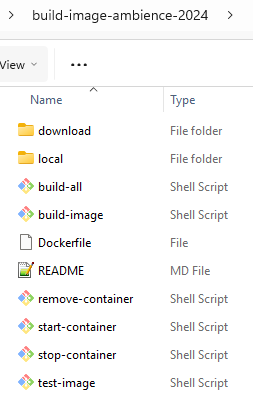
What you need
- Docker Desktop (Windows/macOS) or Docker Engine (Linux)
- Docker Buildx (included with current Docker installations)
unzipandcurl- An Ambience 2024.0 archive (
Ambience-2024.0*.zip) - A running MongoDB instance accessible from the Docker container (Ambience uses MongoDB as its underlying database)
On Ubuntu or Debian, install the required tools:
sudo apt-get update
sudo apt-get install -y docker.io unzip curl
sudo systemctl enable --now docker
sudo usermod -aG docker "$USER"
Sign out and back in after adding yourself to the Docker group.
Do not run the helper scripts with sudo; that creates root-owned persistent data.
Quick start
1. Place the archive: Put the Ambience ZIP in the download/ folder. If it is stored elsewhere, set AMBIENCE_DOWNLOADS_DIR to that path.
2. Create host paths: Create the following paths in the working directory containing the shell scripts and carry out the following:
local/ambience/etc: deploy the ElixirAmbience.licence, logback.xml, JDBC pool properties, andapplication.confconfigured for your environment. Inapplication.conf, setmongodbtohost.docker.internaland verify the port inelixir.mongo.connectionStringmatches your MongoDB instance (see MongoDB below).local/ambience/ext: deploy the JDBC driver files required to connect to your databaselocal/ambience/fonts: deploy the necessary fonts required for report rendering
3. Build and test. Run the single beginner command from the project root:
./build-all.sh
This builds the ambience:local image and runs a smoke test against /alive. The underlying commands are also available separately (./build-image.sh and ./test-image.sh).
4. Start the container.
./start-container.sh
The script binds port 1740 to 127.0.0.1, creates all persistent directories, and waits up to two minutes for Ambience to pass its readiness check. Set HOST_PORT and BIND_ADDRESS if the defaults do not suit your environment.
5. Open Ambience at http://127.0.0.1:1740.
6. Stop and remove. When finished:
./stop-container.sh
./remove-container.sh
Stopping keeps both the container and its persistent data. Removing the container deletes only the container; the data under local/ambience/ is kept. The removal helper refuses to remove a running container.
Persistent data
start-container.sh creates and mounts these directories under ./local/ambience/ if they don’t exist:
| Directory | Contents |
|---|---|
data/ |
Application data (in, out) |
log/ |
Application logs |
etc/ |
Configuration files, including ElixirAmbience.licence |
ext/ |
JDBC drivers and custom jar libraries |
fonts/ |
Additional fonts (mounted read-only) |
All of these survive stopping and removing the container. Run ./start-container.sh again to create a new container using the same data.
Back up local/ambience/ to preserve all persistent state. Do not use docker rm -v unless you also intend to remove named volumes.
First-start seeding
On first start, etc/ and ext/ are empty on the host if not already created. The start script copies the image’s shipped content into them automatically (if not already there), so the bind mount never hides the shipped configuration. After that initial copy, edits you make on the host are preserved across container restarts; the image content is only copied once.
Licence
The licence from the archive is seeded into local/ambience/etc/ElixirAmbience.licence on first start and persists there. To replace it, overwrite the file on the host; the change takes effect next time the container starts.
To override the licence without modifying the persistent copy:
AMBIENCE_LICENCE_FILE=/path/to/ElixirAmbience.licence ./start-container.sh
Do not copy licence files into the Docker build context.
MongoDB
Ambience requires a MongoDB instance as its underlying database. Without a reachable MongoDB server, Ambience will fail to start (exit code 255).
The MongoDB connection is configured in local/ambience/etc/application.conf. The two settings to verify are:
mongodb— the hostname the container uses to reach MongoDB. Usehost.docker.internalto connect to a MongoDB instance running on the host machine.elixir.mongo.connectionString— the full connection URI including the host and port, e.g.mongodb://host.docker.internal:27017.
If MongoDB runs on a non-default port, update both elixir.mongo.connectionString and elixir.data.mongodb.default.connectionString in application.conf to match.
Configuration Note: host.docker.internal is supported by Docker Desktop on Windows and macOS. On Linux, add --add-host=host.docker.internal:host-gateway to the docker run options in start-container.sh if it does not resolve automatically.
Restart policy
The container starts with --restart no. Once Ambience passes its /alive health check, the policy is upgraded to unless-stopped, so Docker restarts the container automatically after a host reboot or a crash.
Timezone
The container defaults to Asia/Singapore. Override it with:
AMBIENCE_TZ=America/New_York ./start-container.sh
Fonts
The Docker image includes fontconfig and the DejaVu font family so Java AWT can render text. Without these, reports that use AWT fail with “Fontconfig head is null”.
To supply additional fonts (for example, Windows core fonts such as Arial or Times New Roman), place the .ttf or .otf files in a directory and point to it:
AMBIENCE_FONTS_DIR=/path/to/fonts ./start-container.sh
The default location is ./local/ambience/fonts/. The directory is mounted read-only at /usr/share/fonts/ambience inside the container.
Graceful shutdown
The build script patches bin/run-server to launch Java with exec, making Java PID 1 in the container. This allows Docker to deliver SIGTERM directly to the JVM for a clean shutdown (exit code 143 instead of 137).
Configuration Note: the stop timeout defaults to 30 seconds. If Ambience needs more time, increase it: STOP_TIMEOUT=60 ./stop-container.sh.
Environment variables
| Variable | Default | Description |
|---|---|---|
IMAGE_TAG |
ambience:local |
Docker image to build or run |
HOST_PORT |
1740 |
Host port bound to the container |
BIND_ADDRESS |
127.0.0.1 |
Bind address; use 0.0.0.0 to expose beyond localhost |
CONTAINER_NAME |
ambience |
Docker container name |
AMBIENCE_LICENCE_FILE |
(unset) | Path to an external licence file |
AMBIENCE_DATA_DIR |
./local/ambience |
Root directory for all persistent data |
AMBIENCE_UID / AMBIENCE_GID |
Current user | UID/GID for persistent data ownership |
AMBIENCE_TZ |
Asia/Singapore |
Container timezone (TZ environment variable) |
AMBIENCE_FONTS_DIR |
$AMBIENCE_DATA_DIR/fonts |
Additional fonts directory, mounted read-only |
AMBIENCE_DOWNLOADS_DIR |
./download |
Directory to search for archives |
STOP_TIMEOUT |
30 |
Seconds to wait for graceful stop before force-killing |
Deployment to Target Machine
1. Confirm the image exists (from the Ubuntu/WSL terminal), you should see ambience with tag local (or whatever IMAGE_TAG was set to) e.g.:
docker images ambience
2. Export the image to a file, e.g.:
docker save ambience:local | gzip > ~/ambience-image.tar.gz
3. Copy over to target machine.
4. Load in target machine, e.g.:
gunzip -c ambience-image.tar.gz | docker load
5. Ensure scripts, host path local/ambience and its subdirectories are present in working directory on target machine.
6. Execute ./start-container.sh on target machine.
Troubleshooting
Container exits immediately with code 255
Ambience terminates at startup when it cannot connect to MongoDB. Check the container logs:
docker logs ambience
If the log contains Terminating due to MongoDB connection failure, verify:
- MongoDB is running and accepting connections on the expected host and port.
local/ambience/etc/application.confhasmongodbset tohost.docker.internal(notlocalhost, which resolves to the container itself).- The port in
elixir.mongo.connectionStringmatches your MongoDB instance. - No firewall or network policy blocks the container from reaching the host.
“Fontconfig head is null” or blank report output
The image includes fontconfig and ttf-dejavu. If reports still fail, the report likely requires fonts not present in the DejaVu family. Copy the needed font files into a directory and set AMBIENCE_FONTS_DIR:
mkdir -p local/ambience/fonts
cp /path/to/arial.ttf /path/to/times.ttf local/ambience/fonts/
./start-container.sh
Container exits with code 137
Exit code 137 means Docker killed the process with SIGKILL (out of memory or stop timeout exceeded). Check two things:
- Verify Docker has enough memory allocated (Docker Desktop: Settings > Resources).
- Increase
STOP_TIMEOUTif the server needs more time to shut down:STOP_TIMEOUT=60 ./stop-container.sh.
Container exits with code 143
This is normal graceful shutdown. Java received SIGTERM and exited cleanly. No action needed.
“Container is stopped. Run ./remove-container.sh before starting a replacement.”
A previous container exists but is not running. Remove it first, then start a new one:
./remove-container.sh
./start-container.sh
Your persistent data in local/ambience/ is kept.
“Container exists but is not managed by this project.”
An older ambience container was created outside these scripts. Inspect it with docker inspect ambience, then remove it manually with docker rm ambience if it is no longer needed.
Port 1740 is already in use
Another process is using the port. Either stop that process or choose a different port:
HOST_PORT=1741 ./start-container.sh
Then access Ambience at http://127.0.0.1:1741.
Permission denied on persistent directories
The start script sets ownership to your UID/GID. If you previously ran a script with sudo, the directories may be owned by root. Fix ownership:
sudo chown -R "$(id -u):$(id -g)" local/ambience/
Database connection fails inside the container
JDBC connection strings and MongoDB URIs that use localhost or 127.0.0.1 as the host refer to the container itself, not the host machine. Replace localhost with host.docker.internal in local/ambience/etc/application.conf so the container can reach databases running on the host:
mongodb— set tohost.docker.internalelixir.mongo.connectionString— e.g.mongodb://host.docker.internal:27017elixir.data.mongodb.default.connectionString— same as above, for data module connections- JDBC connection pool properties file (
local/ambience/etc/): change the connection URL, e.g.jdbc:sqlserver://host.docker.internal:1433;databaseName=...
Configuration Note: host.docker.internal is supported by Docker Desktop on Windows and macOS. On Linux, add --add-host=host.docker.internal:host-gateway to the docker run options in start-container.sh if it does not resolve automatically.
Container did not become ready
The start script waits up to two minutes for /alive to respond. Check the container logs for details:
docker logs ambience
Common causes: MongoDB not reachable, insufficient memory, missing or invalid licence, or a port conflict inside the container.